Managing Products in Your Shop
Product management is designed to make it easy to control the products and product colors available to your customers without managing every item individually.
The platform uses a rules-based product management system to quickly include or exclude products based on characteristics such as product department, brand, style, gender, and color. You can use these filters to make broad changes across your shop catalog or manage individual products when you need more control.
When you create a new shop, the platform automatically curates an initial product selection based on the Shop Colors you selected during shop creation. Products with color variants that correspond with your Shop Colors are automatically included, giving you a ready-to-share catalog without requiring you to build your product selection from scratch.
You can update your shop color selections at any time by navigating to Shop Settings from the left navigation menu.
Shop Colors and Your Product Catalog
Your Shop Colors play an important role in the initial setup and branding of your shop.
During shop creation, the system uses your Shop Color selections to identify products with matching color variants and build your initial product catalog. Shop Colors are also used throughout the storefront to create a consistent branded shopping experience, including your shop banner and other accent elements.
For the most unified branding experience, we recommend selecting Shop Colors that correspond with your client's branding, plus any neutral product colors you may want to include.
However, your Shop Colors do not have to represent every product color you want to sell.
If you'd like to offer additional product colors without adding them as Shop Colors, you can do so using the color filters within the Product Manager.
This allows you to expand the merchandise available to your customers without changing the colors used to brand your storefront.
Accessing the Product Manager
To manage the products available in your shop, first select Products from the left navigation menu.
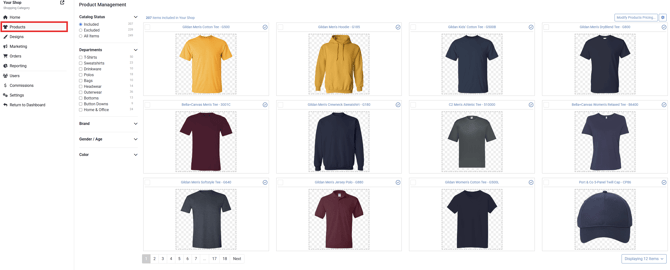
If products have already been included in your shop based on shop color selections, the Product Manager will default to your Included products.
If no products have been selected yet, the Product Manager will display Excluded products by default.
From here, you can manage products individually or use the available filters to make changes to groups of products at once.
Using Product Filters
The filters on the left side of the Product Manager allow you to narrow your catalog based on specific product characteristics.
For example, you may want to:
- Include or exclude products from a particular brand.
- Offer additional products in a specific color.
- Limit your catalog to certain product styles or departments.
- Include products intended for a particular gender or age group.
- Remove groups of products that aren't relevant to a particular client or shop.
You can combine filters to create a more specific product selection.
For example, rather than reviewing your entire catalog individually, you could filter the catalog to a particular product category, brand, and color. Once the results match the selection you'd like to manage, you can include or exclude the filtered products together.
This rules-based approach allows you to manage a large catalog without having to configure every product individually.
Including or Excluding Groups of Products
To include or exclude a group of products, use the filters on the left side of the Product Manager to narrow the catalog to the products you'd like to update.
Once your filtered results contain the products you'd like to manage, click the Include/Exclude button in the upper-right corner of the screen.
In the example below, we've selected white as a shop color because we want white products included in the shop. However, we do not want to offer white t-shirts. We can filter our catalog down to white t-shirts and exclude them from our shop without affecting white products with other attributes.
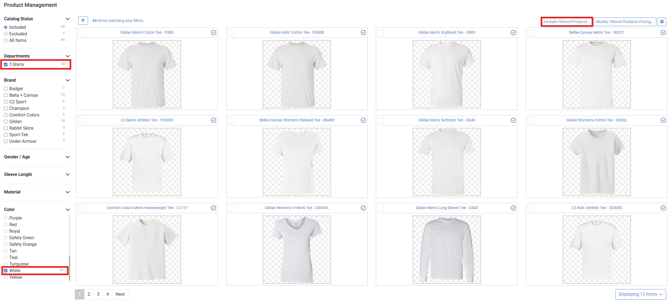
The selected rule will be applied to the products matching your filters.
You can return to the Product Manager and adjust these selections whenever you'd like to change the products available in your shop.
Including or Excluding Individual Products
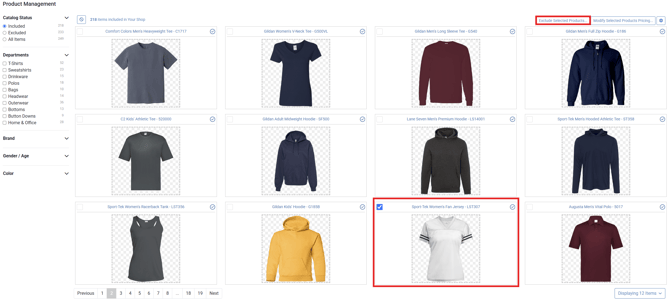
You do not need to use a catalog-wide rule if you'd only like to make a change to a specific product.
Locate and select the individual product you'd like to manage, then use the Include/Exclude option to change its availability.
This can be helpful when most products matching a particular rule should remain available, but you want to make an exception for one or several individual products.
Adding Additional Product Colors
Shop Colors and available Product Colors can be managed separately.
For example, your client's branding may use Navy and White, so you may choose those as your Shop Colors. If you'd also like to offer Red garments, you do not need to add those colors to your Shop Colors.
Instead, use the Color filters within the Product Manager to locate and include products available in the additional colors you'd like to offer.
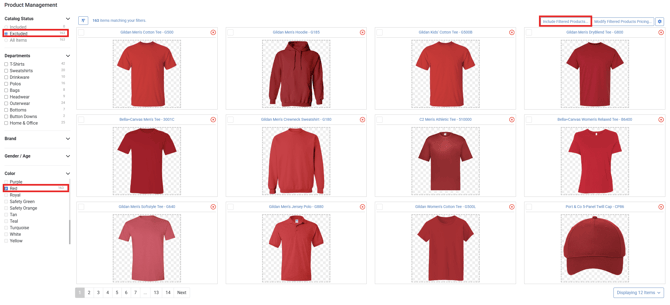
This allows your storefront branding to remain centered around your client's selected Shop Colors while providing customers with a broader range of merchandise options.
Managing Product Pricing
The same filtering tools used to manage your product catalog can also help you manage pricing.
You can filter products based on shared characteristics and apply pricing changes across the resulting selection, or make pricing adjustments to an individual product.
This makes it possible to establish different pricing strategies for different portions of your catalog without updating every product individually.
For step-by-step instructions on modifying pricing, see our tutorial: Managing Product Pricing.
Product Colors and Design Permissions
Including a product or product color determines which items are eligible to appear in your shop — but eligibility alone is not enough. A product must also have at least one design that is permitted to print on an available color within its printable area before it will be displayed to your customers.
Design color restrictions allow you to control which product colors a particular design can be printed on. For example, a dark logo may work well on White or Light Grey but may not be appropriate for Black or Navy. Rather than removing those product colors from your catalog entirely, you can exclude the design from the colors where it should not be printed.
This means including a product does not necessarily guarantee that it will appear in your storefront.
What if an included product isn't showing in my shop?
If a product is marked as Included in the Product Manager but isn't appearing in your storefront, the most likely cause is a design color restriction conflict. To resolve this, review the color restrictions for the designs in your shop.
The system will only display a product when at least one of your shop's designs is eligible to print on an available color within that product's printable area.
If all of your designs have been excluded from the available color of the printable area, there is no eligible design/product combination to display. As a result, the product will not appear in your shop.
To make the product available, you can either:
- Update the design's color restrictions to allow at least one design to print on an available product color, or
- Include an additional product color that is already permitted for one or more of your designs.
Once an eligible design and product color combination exists, the product can display in your storefront.
This system prevents customers from seeing blank products or product options that cannot be decorated with one of the designs available in your shop.
Product Management Best Practices
When building or updating your shop, we recommend using Shop Colors primarily to establish the colors that best represent your client's brand. Additional merchandise colors can then be added through the Product Manager without changing the shop's overall branding.
Use filters whenever possible to manage groups of similar products instead of making the same change one product at a time. Individual product selections can then be used when exceptions are needed.
When adding or removing product colors, it's also a good idea to review your design color restrictions. A product can be included in the Product Manager while remaining hidden from the storefront if none of your designs are eligible for its available printable colors.
By combining Shop Colors, Product Filters, individual product selections, and Design Permissions, you can create a catalog that provides customers with a broad selection while maintaining control over how your designs and your client's branding are presented.