Every shop includes a standardized banner that helps create a consistent shopping experience while reinforcing your client's brand. The banner is automatically generated using your shop's settings and updates whenever those settings change.
The shop banner is the automatically generated header displayed at the top of every shop. It shows your Shop Name, reflects your Shop Colors, and rotates eligible logos. This article explains how the banner works, where its content comes from, and how you can influence its appearance.
How the Shop Banner Works
The shop banner appears automatically at the top of every shop and cannot be enabled, disabled, or resized. Its appearance is generated from information already stored within your shop, including:
- Your Shop Name
- Your Shop Colors
- Eligible logos included in your shop
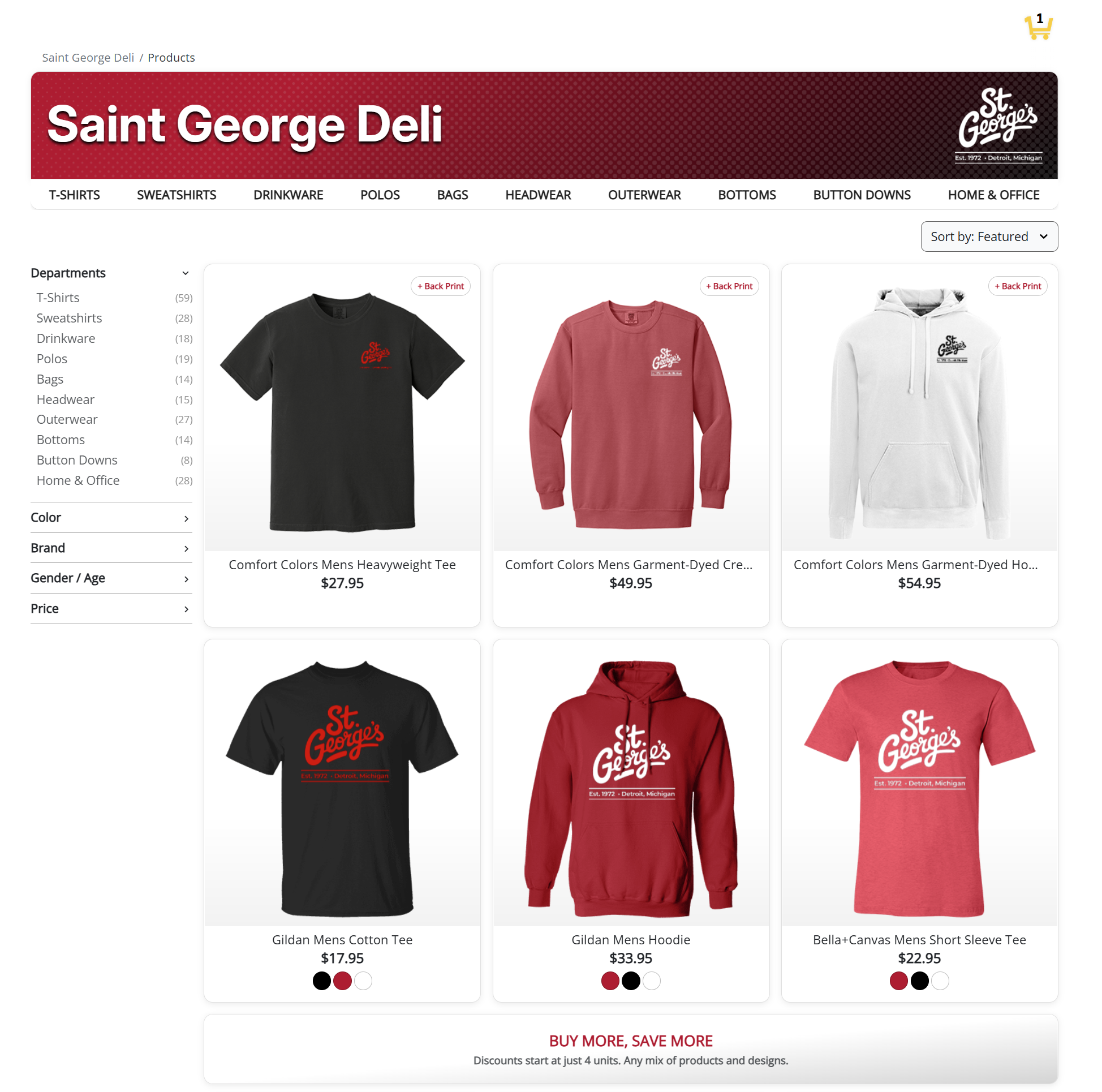
The banner is designed to provide a clean, consistent experience across every shop while automatically adapting to your branding.
Banner Colors
The banner color is automatically generated from your shop's Shop Colors.
When available, the system will use primary shop colors for the banner background. To ensure text remains readable, the platform automatically evaluates color contrast against WCAG 2.2 AA accessibility standards.
If a suitable primary color is not available, the banner will default to black.
The banner background displays a subtle gradient that fades from your primary color on the left to black on the right.
Because the banner color is generated automatically, you cannot yet select a separate banner color independently from your Shop Colors. A theme editor with full banner color control is planned for a future release. Check the product changelog for the latest updates.
Updating Your Shop Colors
You can update your Shop Colors at any time.
- Open your shop.
- Navigate to Shop Settings.
- Update your Shop Colors.
- Save your changes.
The banner will update immediately after your changes are saved.
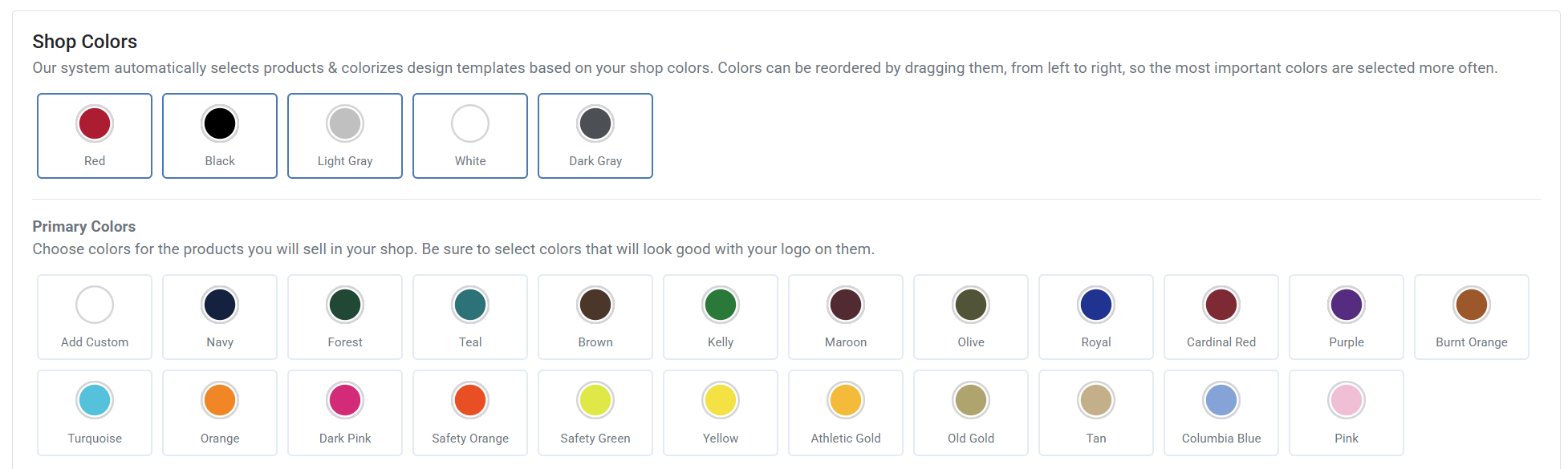
Please note: For the most unified branding experience, we recommend selecting Shop Colors that closely match your client's brand colors.
Banner Title
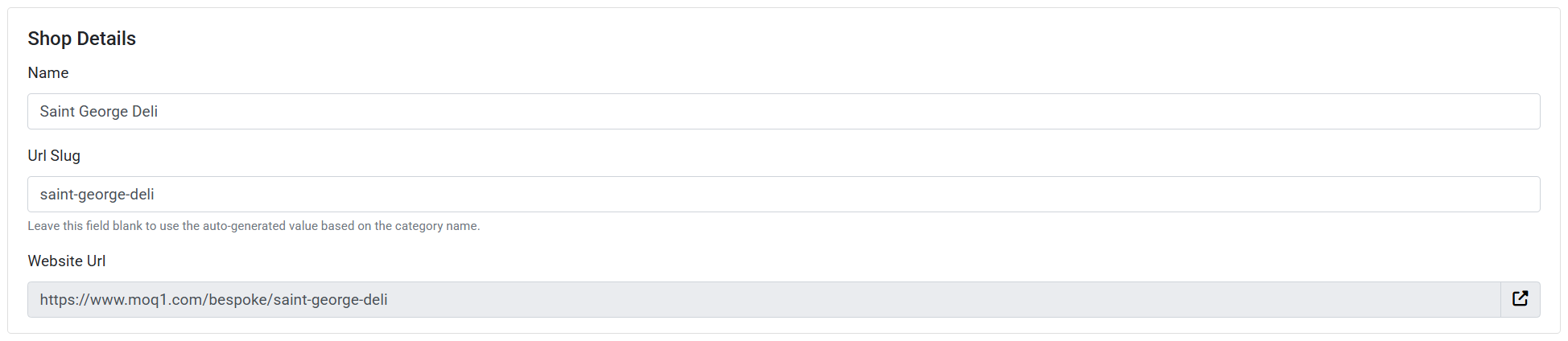
The title displayed in the banner is always your Shop Name.
If you change your Shop Name within Shop Settings, the banner title will update automatically after saving your changes.
Banner Logos
The banner displays a rotating selection of logos included in your shop.
Each time a shopper loads a page, the banner randomly selects one eligible logo to display. Every eligible logo has an equal chance of appearing.
If only one eligible logo exists, that logo will always be displayed.
If no eligible logos are available, the banner will display only the Shop Name.
To add or manage logos in your shop, navigate to the Logos section of Shop Settings.

Which Logos Are Eligible?
Not every logo included in your shop is eligible to appear in the banner.
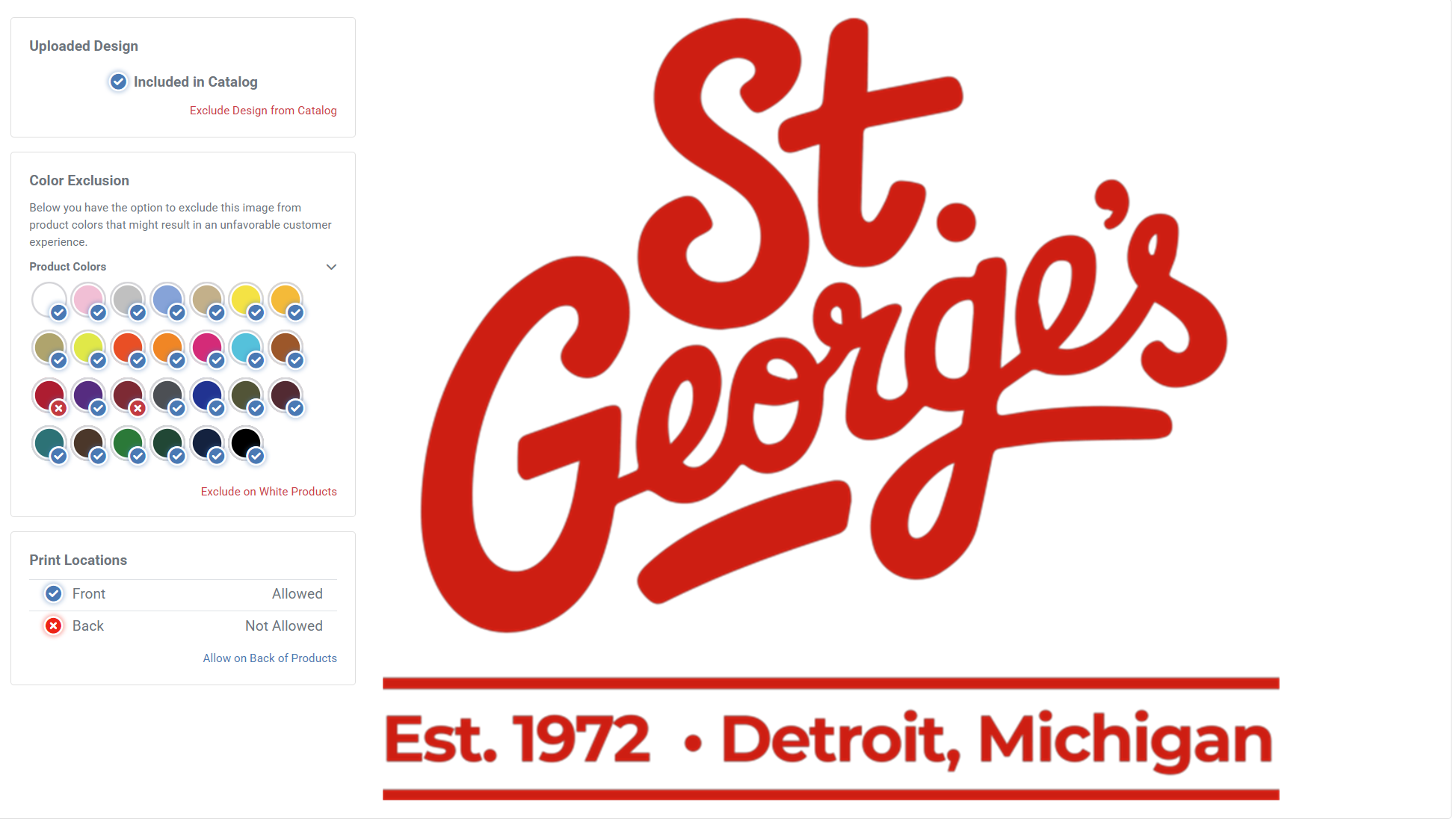
A logo will not appear if it:
- Is configured with a Back Only print location.
- Has color restrictions that prevent it from printing on dark-colored products.
To review or update a logo's color restrictions, navigate to the Logos section of your shop and edit the individual logo's print settings.
For banner eligibility, dark-colored products include:
- Black
- Dark Grey
- Forest
- Maroon
- Old Gold
- Navy
- Cardinal
- Royal
- Brown
- Olive
- Purple
These restrictions help ensure that only logos capable of displaying consistently across the broadest selection of products are used in the banner.
Shop Colors vs. Product Colors
Your Shop Colors and Product Colors serve different purposes.
Shop Colors determine the visual appearance of your storefront, including:
- Shop banner color
- Accent colors
- Interface elements
Product Colors determine which garment colors shoppers can purchase.
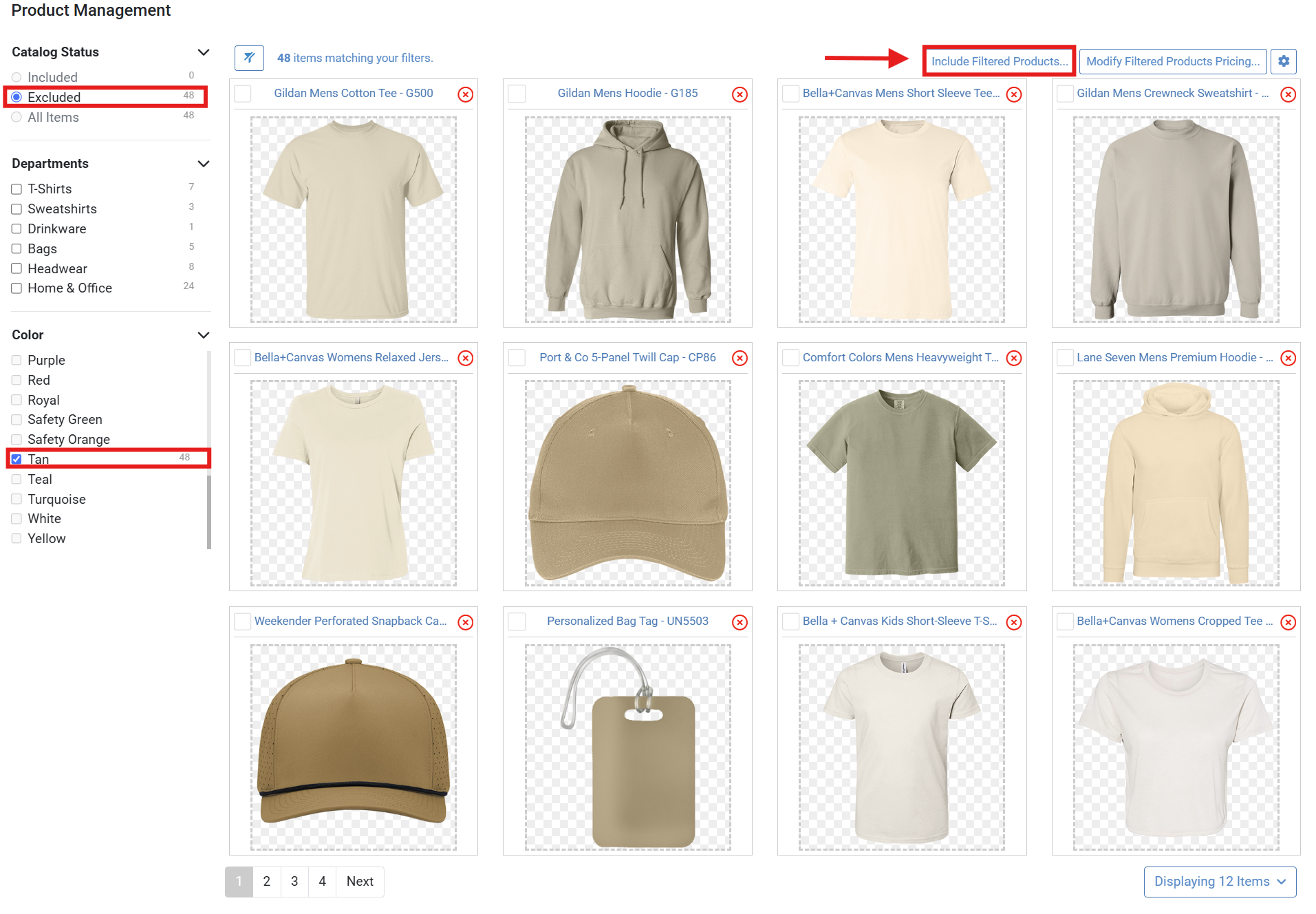
If you'd like to offer additional gaproduct colors beyond your selected Shop Colors, you can do so from the Product Filters section of the Management Portal without affecting your shop's branding.
Best Practices
For the best branding experience, we recommend the following:
- Choose Shop Colors that closely match your client's brand colors.
- Include multiple logo variations to create a more dynamic banner experience.
- Avoid unnecessary dark-color restrictions if you'd like logos to appear in the banner rotation.
- Avoid using Back Only logo configurations for logos you want displayed in the banner.
- Keep your Shop Name up to date, as it is always used for the banner title.
- Use Product Filters to expand available garment colors without changing your shop's branding.
Frequently Asked Questions
Can I choose a custom banner color?
Not yet. The banner color is automatically generated from your Shop Colors using WCAG 2.2 AA accessibility standards to ensure text remains readable. A theme editor with full banner color control is planned for a future release — check the product changelog for updates.
Can I upload a separate banner image?
Not yet. The banner is generated automatically using your Shop Name, Shop Colors, and eligible logos. A theme editor that will give you full control over the banner is planned for a future release — check the product changelog for updates.
Why isn't my logo appearing in the banner?
Your logo may be ineligible for banner rotation for one of two reasons: it is configured with a Back Only print location, or it has color restrictions that prevent it from displaying on dark-colored products. To check or update these settings, navigate to the Logos section of Shop Settings and edit the logo's print settings.
Why doesn't my banner show a logo?
If none of the logos included in your shop meet the eligibility requirements, the banner will display only your Shop Name.
Can I change the banner title?
Yes. The banner title always matches your Shop Name. Updating the Shop Name in Shop Settings will update the banner immediately after your changes are saved.
I changed my Shop Colors. Why did my banner change?
The banner color is derived from your Shop Colors and is automatically evaluated against WCAG 2.2 AA accessibility standards to ensure text remains readable. Any changes take effect immediately after you save your Shop Settings.