Note: Template Designs must be enabled for your shop before use. This feature is not available to all shops. Contact our support team to check your eligibility.
Template Designs are system-generated designs built from your shop's colors and text. They let you offer a wide variety of on-brand designs without manually creating them in a separate design program.
Before adding Template Designs to your shop, you’ll need to configure your templates to make sure they’re aligned with your brand.
Configuring Template Defaults
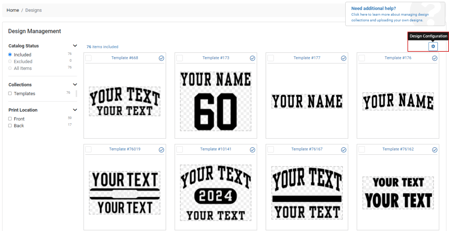
From My Shops, enter your shop and click Designs in the left navigation menu.
Once you have entered the design manager, click the Design Configuration icon at the top right corner of the screen to enter your template settings.
Your shop's colors are applied automatically to your Template Designs. To offer additional colors, click the + icon to the right of your default colors.
Next, enter your text defaults. The text you enter here will display on all of your shop’s selected templates. You can return to this screen to make edits if you’d like to at any point in the future.
Once you’ve made your selections, click Save at the bottom right corner of the window.
The next time you view Template Designs, they will be populated with your selected colors and the default text you entered.
For a step-by-step guide to adding Template Designs to your shop, see our full tutorial: How to Include Template Designs.