When you add a new user to your account, you’re assigning them a role that determines what they can access and what they can earn. Use this guide to:
-
Create a new account properly
-
Assign the correct role (Administrator, Creator, or Report Viewer)
-
Optionally configure profit sharing via Payables
This ensures accounts are configured correctly from the start — both in permissions and in earnings — preventing mistakes and keeping your directory organized.
1. Where to Add a New User
Navigation
Left Navigation → Users → New User Login
Click New User Login to open the user creation form.
2. Completing the User Creation Form
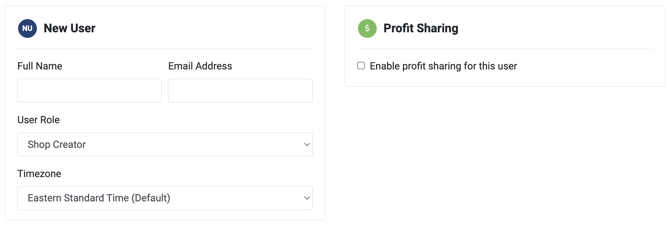
Enter the user's:
-
Name
-
Email Address
-
Role (Shop Administrator, Shop Creator, or Report Viewer)
- Time Zone
3. Assigning the Correct Role
Your selection controls what the user can see and do:
-
Administrator – Full control of all shops, users, markup, commission, and payables.
-
Creator – Can create and manage their own shops; can share markup using Payables.
-
Report Viewer – Reporting-only access; cannot edit shops or settings.
Visit this article for a more detailed review of Account Types and their permissions.
4. Enabling Profit Sharing (Payables)
If this user should receive commission or markup earnings, click the checkbox to "enable profit sharing" during account creation.
Important rules:
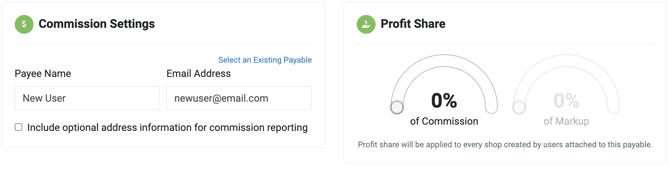
- Any additional Shop Administrators created within your account should be linked to your primary company payable to ensure base commission is routed correctly.
-
Shop Creator Accounts can receive a percentage of base commission if their Shop Administrator assigns it through a payable. By default, Shop Creators receive 100% of any markup they add to their shops unless they choose to share a portion of that markup with a payable they create.
-
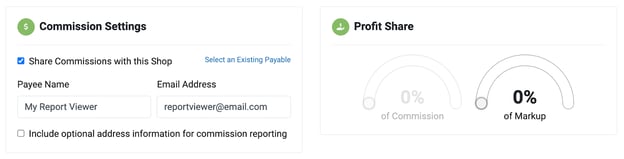
Report Viewers do not receive profit by default. If they are linked to a Payable, they may receive a percentage of markup, but not base commission.
5. Sending the Invitation
Click Save.
Your actions will:
-
Create the new user profile
-
Trigger an automated invitation email
-
Redirect you to Payables setup (if enabled)
The user must open their email and accept the invitation to activate their account.
6. After the User Accepts
Once activated, the user will:
-
See only the shops permitted by their assigned role
-
Have access to reporting based on their permissions
-
Receive markup or commission payouts if configured as a Payable
To adjust earnings later, go to:
Commissions → Payables
See: How to Add a Payable
Summary
To add a new user:
-
Go to Users → New User Login
-
Fill in user info and select an Account Type
-
Enable profit sharing if needed
-
Save and follow prompts to configure Payables
-
The user accepts their email invitation to begin using their account
For related articles: