Any design activated in your shop automatically appears on every item in your catalog, making it easy for customers to find their preferred product and design combination.
You can view all the designs you’ve uploaded to your shop at any time by clicking Designs in the left navigation menu. You’ll notice Design Filters in the top left of your Design Library indicating that designs are organized by Included and Excluded designs.
Included Designs are currently active and visible in your shop. Excluded Designs have been uploaded but are not yet active in your shop.
Adding New Designs to Your Shop
To add a new design to your shop, click Upload Design in the top right corner of your Design Library.
After selecting your design from your device, you'll see file information such as file size and dimensions listed in the bottom left corner. Once you've confirmed the specs meet print requirements, click Upload Image.
Recommended file specs: For best print quality, upload a PNG or JPG file at a minimum of 300 DPI and 4500 × 5400 pixels. PNG is recommended for designs that require transparency.
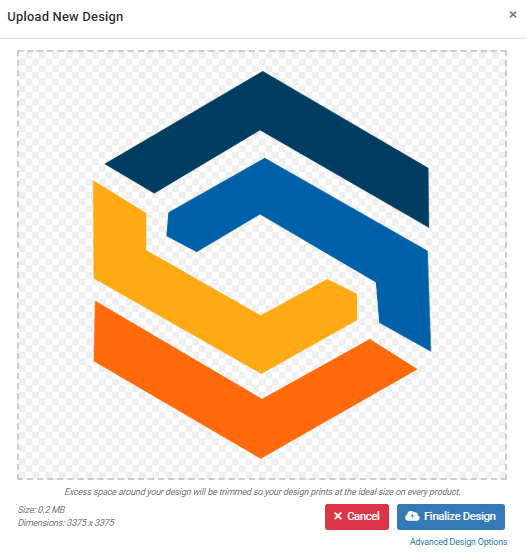
Your shop will be updated to include your new design immediately. If you'd prefer to exclude it by default, you can do so within the Advanced Design Options menu.
Advanced Design Options
To access Advanced Design Options, click on any design in your Design Library. From there, you can:- Exclude a design from your shop
- Exclude it from being displayed on certain product colors
- Exclude it from availability in certain print locations
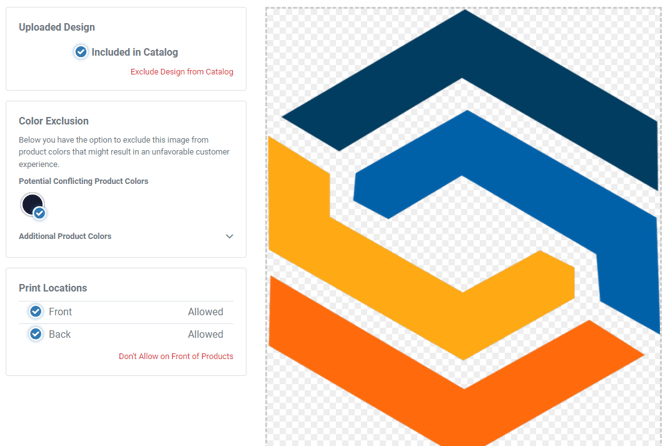
Note: If you exclude a design from product colors currently set as your Shop Colors, make sure to either add another design for those colors those product colors OR remove that color as a Shop Color in your settings.
For more detailed instructions on Adding a Custom Design to Your Shop, check out our detailed tutorial on that subject.
Excluding Existing Designs from Your Shop
To deactivate a design, restrict it to certain product colors, or limit its availability to specific print locations, click on it in your Design Library to open its Advanced Design Options.
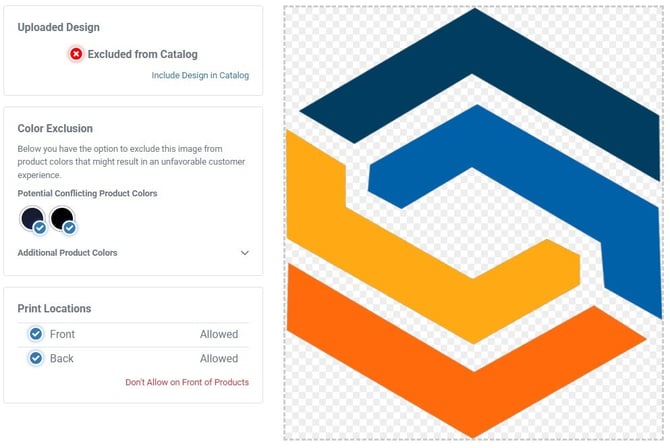
To view your shop’s active designs, be sure to filter to Included designs. If you’d like to edit an active design in any of the ways noted above, click on it to open Design Configuration for that design.
From here, you can Exclude the design from your shop (which will remove it from your storefront), exclude it from being displayed on certain product colors, or exclude it from availability in certain print locations.
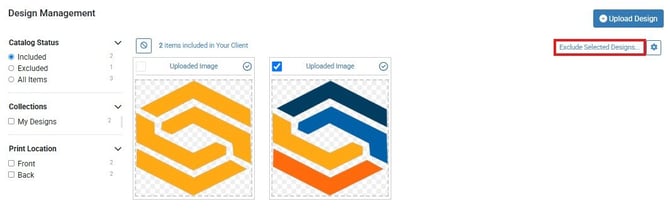
Please note: if you exclude a design from product colors currently selected as your Shop Colors, you must do one of the following:
- Add another design to display on those product colors.
- Remove that color as a Shop Color in your settings, or
- c) exclude that color products from your shop from within your Product Manager.
For more information, see our tutorials on Including Template Designs and Configuring Templates in Your Shop.